Quick Navigation – How to Create Gradient Background
Create Your Solid Color & Gradient Background Now
Professional YouTube thumbnails and Instagram posts in minutes, no design experience needed
Free • Instant Download • No signup required
How to Create Solid Color & Gradient Backgrounds for YouTube Thumbnails & Instagram
Creating a solid color background or eye-catching gradient background is one of the fastest ways to elevate your YouTube thumbnails and Instagram posts. Whether you’re a content creator, social media manager, or graphic design enthusiast, professional-looking backgrounds are non-negotiable for standing out in crowded feeds and search results.
The challenge? Most design tools require expensive software subscriptions or extensive learning curves. This guide shows you exactly how to create stunning gradient backgrounds and solid color backgrounds using simple, free tools—specifically designed for YouTube and Instagram’s exact specifications. By the end, you’ll know how to create professional backgrounds that enhance engagement and reflect your brand identity.
⏱️ Short on time? Jump directly to our Color Image Creator tool to instantly generate your first background.
Why How to Create Gradient Background & Solid Color Backgrounds Matter for Your Content
A solid color background or carefully chosen gradient background isn’t just decoration—it’s a strategic branding element. When you know how to create gradient backgrounds that align with your visual identity, you unlock three critical advantages:
1. Brand Consistency: Using the same color palette across all your YouTube thumbnails and Instagram posts creates instant recognition. Viewers see your gradient or solid color background and immediately know it’s you. This consistency builds trust and professionalism.
2. Visual Hierarchy: A well-chosen solid color background keeps viewers’ eyes focused on your text and imagery. Unlike busy patterns, clean backgrounds let your headline and thumbnail elements shine. YouTube’s algorithm favors clear, readable thumbnails—a simple gradient background helps achieve this.
3. Time & Cost Savings: Rather than spending hours in Photoshop or paying for stock images, knowing how to create gradient backgrounds instantly eliminates design bottlenecks. Create dozens of backgrounds in minutes, all perfectly sized for your platform.
Solid Color Background Basics: Psychology & Accessibility
Before diving into how to create gradient backgrounds, understand that a well-chosen solid color background is equally powerful. A solid background is simply a single, uniform color with no transitions or patterns—the foundation of professional design.
Why Choose Solid Over Gradient? Solid color backgrounds offer simplicity, accessibility, and clarity. For content where text is paramount (educational videos, tutorials), a solid background prevents visual noise. Solid backgrounds also load faster and work equally well on mobile and desktop.
Accessibility Considerations: When you create a solid color background, ensure sufficient contrast with text or overlay elements. A white text on dark background, or vice versa, benefits colorblind viewers. According to WCAG guidelines, aim for a contrast ratio of at least 4.5:1 for text.
A solid color background also supports users on slow internet connections—colors render instantly, while complex gradients may display in steps.
Types of Gradient Backgrounds: Linear, Radial & Conic Gradients Explained
When you decide to create a gradient background instead of a solid color, you have options. Each gradient type creates a different visual effect, suitable for different moods and content types.
Linear Gradient Background
A linear gradient background transitions smoothly from one color to another in a straight line. This is the most popular choice for YouTube thumbnails and Instagram posts because it’s clean, modern, and easy to read text over.
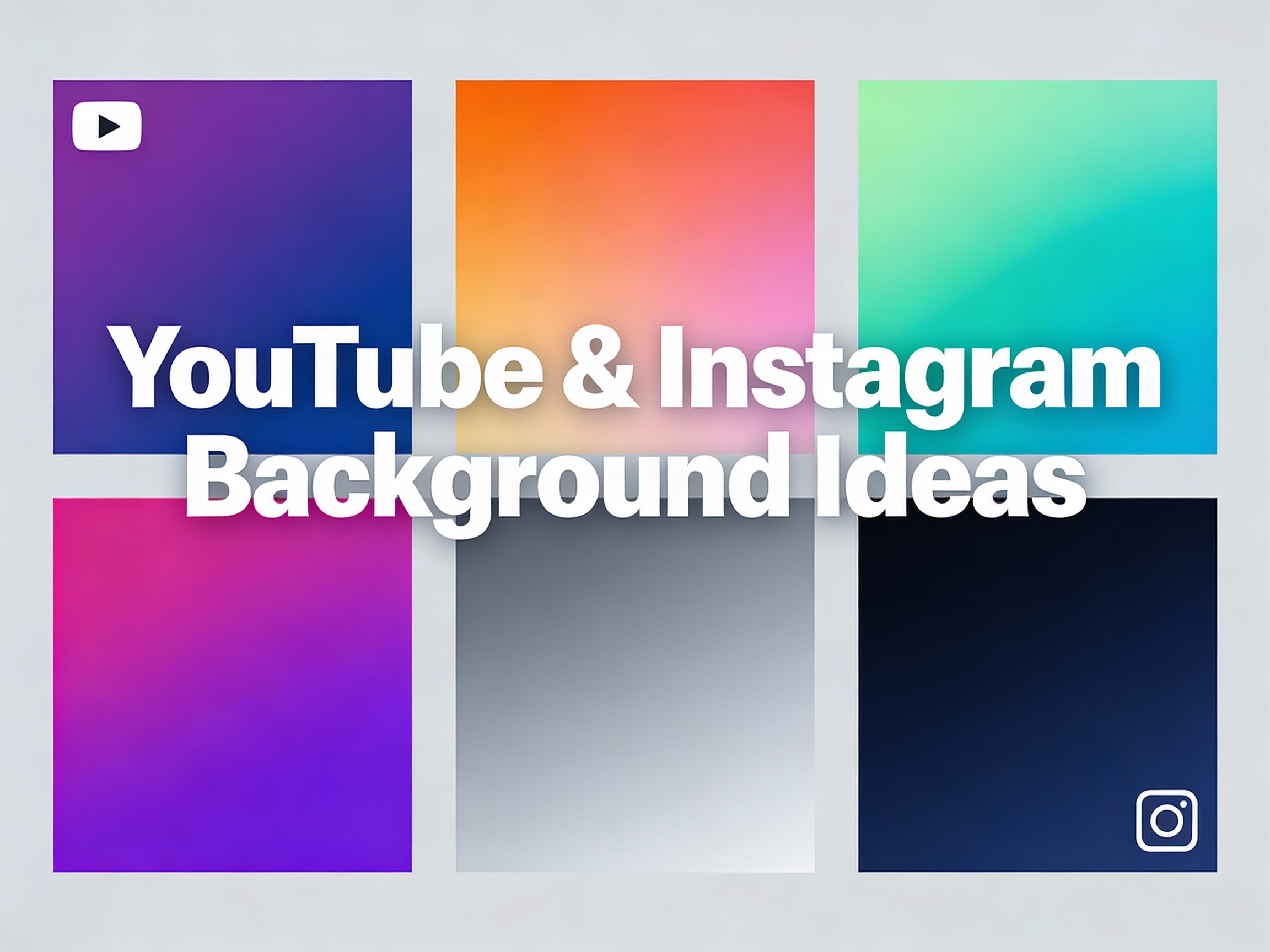
Best for: Motivational content, tutorials, tech channels, and professional thumbnails. Example: Purple to blue, suggesting trust and innovation.
Radial Gradient Background
A radial gradient background starts with one color at the center and transitions outward to another color. This creates a spotlight or vignette effect, naturally drawing eyes to the center of your thumbnail.
Best for: Gaming thumbnails, product reveals, beauty content, and anything where you want emphasis on a central element.
Conic Gradient Background
A conic gradient background rotates around a center point, like a color wheel. This creates a vibrant, energetic feel—perfect for creative or trendy content. Use cautiously as it can be visually demanding.
How to Create Gradient Background Using the Color Image Creator Tool
The easiest way to create a solid color background or gradient background is using specialized online tools. Here’s exactly how to use our Color Image Creator to generate professional backgrounds in under 2 minutes:
Step 1: Visit the Tool & Select Gradient or Solid Color
Go to the Color Image Creator. The interface is clean: choose between “Solid Color” or “Gradient Background” at the top. Click your preference.
Step 2: Set Your Dimensions (YouTube or Instagram)
Input your image dimensions. If creating for YouTube thumbnails, select preset “1280×720” or enter manually. For Instagram, select “1080×1080” (square) or “1080×1350” (portrait). This ensures your background is optimized for the platform’s exact specifications.
Step 3: Choose Your Colors (Using the Color Picker)
Click the color selector. You can manually input hex codes (e.g., #6C63FF) or use our Color Picker Tool to extract colors from competitor thumbnails or brand guidelines. For gradients, you’ll select a start color and end color.
Step 4: Select Gradient Angle & Type (If Creating Gradient Background)
For gradient backgrounds, choose your angle (0°, 45°, 90°, etc.) or select gradient type (linear, radial, conic). Adjust until the preview matches your vision.
Step 5: Preview & Download Instantly
See your solid color background or gradient background in real-time. Click “Download” to save as PNG or JPG. Your background is ready to use immediately in video editing software or design tools.
YouTube Thumbnail Specifications: Perfect Dimensions for Your Gradient Background
YouTube has strict specifications for thumbnail images. When you create a gradient background for YouTube, follow these exact guidelines:
- Recommended dimensions: 1280 × 720 pixels (16:9 aspect ratio)
- Minimum size: 640 × 360 pixels
- Aspect ratio: 16:9 is mandatory
- File format: JPG, PNG, or GIF
- Maximum file size: 2 MB
- Recommended text size: 42-72pt to remain readable at small sizes
When you create a gradient background at 1280×720, remember that YouTube displays thumbnails at different sizes across devices. A gradient that looks perfect on desktop may lose impact on mobile, so always test your final thumbnail on your phone before publishing.
Instagram Post Specifications: Dimensions for Square & Portrait Gradients
Instagram is more flexible than YouTube, supporting multiple aspect ratios. When you create a gradient background for Instagram, choose based on your content type:
Square Posts (Feed)
- Dimensions: 1080 × 1080 pixels
- Aspect ratio: 1:1 (square)
- Ideal for: Product promotions, quotes, before/after comparisons
Portrait Posts (Stories & Full-Screen)
- Dimensions: 1080 × 1350 pixels
- Aspect ratio: 4:5 (portrait)
- Ideal for: Stories, carousel posts, vertical video thumbnails
Color Psychology for Social Media: Which Colors Drive Engagement
Colors aren’t just aesthetic—they trigger psychological responses. When you create a gradient background or solid color background, color choice directly impacts viewer engagement. Understanding this is the difference between a forgettable thumbnail and one that gets clicks.
Red & Orange (Energy, Urgency)
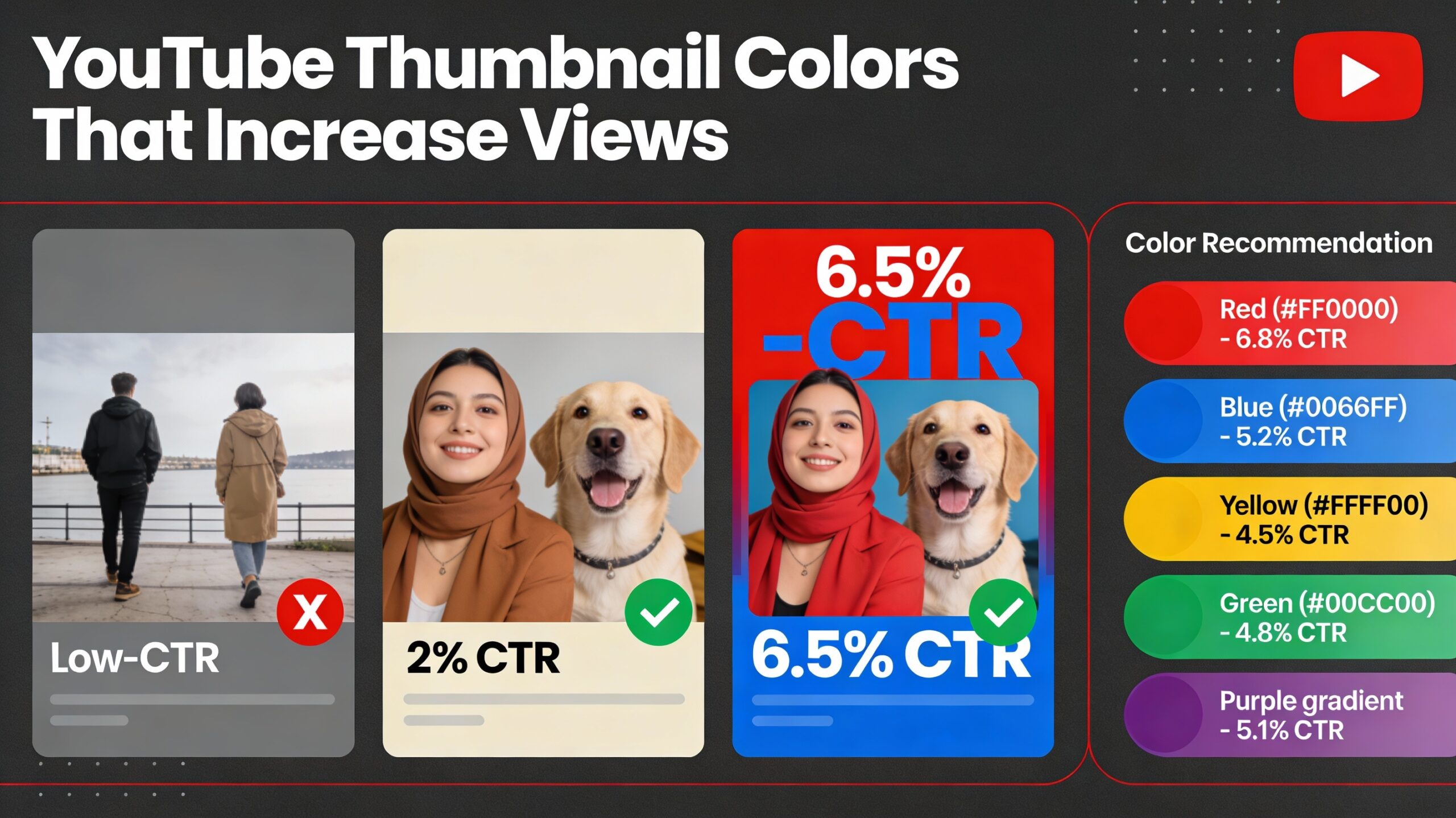
Red and orange backgrounds create urgency and excitement. Perfect for “limited time” offers, breaking news, or motivational content. Studies show red thumbnails have 20% higher click-through rates on average.
Blue & Purple (Trust, Creativity)
Blue suggests trust, calmness, and professionalism—ideal for educational content, tech tutorials, and business channels. Purple adds creativity and mystery, perfect for creative or spiritual content.
Green (Growth, Nature)
Green signals growth, health, and nature. Ideal for fitness channels, gardening content, and sustainability topics. Green backgrounds feel fresh and positive.
Popular Gradient Background Combinations for Different Niches (2025)
When you create a gradient background, these combinations have proven high engagement across different content niches:
Tech & Innovation Channels
Purple (#6C63FF) → Blue (#2E2E9E) or Blue → Cyan. These gradients suggest technology, innovation, and forward-thinking. The smooth transition feels modern and professional.
Gaming & Entertainment
Neon Pink (#FF006E) → Electric Purple (#8338EC) or Deep Blue → Cyan. Bold, energetic gradients that pop against dark video content. High contrast ensures text remains readable.
Lifestyle & Beauty
Warm Coral (#FF6B6B) → Peachy Orange (#FFA559) or Rose Gold → Blush Pink. Warm, inviting gradients that feel personal and welcoming. Perfect for beauty, fashion, and lifestyle content.
Step-by-Step Tutorial: Creating Your First Gradient Background
Let’s walk through creating a complete YouTube thumbnail background from scratch. We’ll create a tech channel thumbnail using a purple-to-blue gradient background.
Step 1: Open Color Image Creator
Visit Color Image Creator and select “Gradient Background” from the top menu.
Step 2: Set YouTube Dimensions
In the “Dimensions” field, either select preset “YouTube Thumbnail (1280×720)” or manually enter 1280 for width and 720 for height. Verify the preview shows a landscape rectangle matching YouTube’s 16:9 format.
Step 3: Select Start Color
Click the “Start Color” selector. Enter hex code #6C63FF (purple) or click the color wheel to choose. You’ll see the preview update in real-time showing your solid color background or gradient beginning.
Step 4: Select End Color & Angle
Click “End Color” and enter #2E2E9E (dark blue). Adjust the gradient angle slider (typically 45° works well for diagonal flow). Watch the preview show the smooth transition from purple to blue.
Step 5: Refine & Preview
The gradient background preview shows exactly how your YouTube thumbnail background will look. Adjust colors or angle until satisfied. Ensure text overlay would be readable (consider adding a semi-transparent dark overlay if needed for white text).
Step 6: Download
Click “Download” and choose PNG (for transparency support) or JPG (for smaller file size). Your gradient background is now saved to your computer at exactly 1280×720 pixels, ready to use in your thumbnail design.
Exporting & Using Your Gradient Background in Video Editors & Design Tools
Once you’ve created and downloaded your gradient background, here’s how to use it across different platforms:
In Adobe Premiere Pro or DaVinci Resolve
Import your downloaded gradient background image as a new layer. Position it on track V1 (video layer 1). Add text and graphics above it. Your gradient background serves as the professional foundation for your thumbnail.
In Canva
Create a new design with YouTube or Instagram dimensions. Upload your gradient background as the background image. Add text, shapes, and other elements on top. Canva will automatically size everything correctly.
In Photoshop
Open a new document at your target dimensions (1280×720 for YouTube). File > Place your downloaded gradient background. Scale to fill the canvas. Add text and graphics as needed.
Mobile vs Desktop: Optimal Color Choices for Both Devices
When you create a gradient background, remember that it displays differently on mobile and desktop screens. Colors appear more saturated on OLED mobile screens, while desktop monitors show more nuance.
Mobile Best Practices: Use slightly more saturated colors and higher contrast. Bold gradients with primary colors (red, blue, green) perform better on small screens. Avoid light pastels that disappear on bright mobile screens.
Desktop Best Practices: Subtle, sophisticated gradients work better on larger monitors. Soft color transitions that would be invisible on mobile look elegant on desktop. Always preview your gradient background on multiple devices before publishing.
Accessibility Tips: Colors That Work for Colorblind Users
About 8% of men and 0.5% of women have color blindness. When you create a gradient background, consider these accessibility guidelines to ensure readability for all viewers:
Avoid these color combinations:
- Red & green side-by-side (most common colorblindness)
- Blue & yellow (less common but still affects some)
- Light colors on light backgrounds (no contrast)
Best practices for creating accessible backgrounds:
- Pair colors with sufficient luminance contrast (4.5:1 minimum)
- Use color + additional visual information (patterns, texture, icons)
- Test your gradient background on colorblind simulators online
- Use neutral backgrounds (grays, whites) with bold text colors
Our Color Picker Tool includes accessibility ratings for color combinations, helping you create backgrounds that work for everyone.
2025 Design Trends: What Gradient & Solid Color Backgrounds Are Trending
Design trends evolve yearly. Here’s what’s trending in 2025 for YouTube thumbnails and Instagram posts:
1. Artificial Intelligence & Neon Aesthetics
Neon color combinations (hot pink, electric purple, bright cyan) remain popular for tech and AI-related content. Neon gradients paired with dark backgrounds create high visual impact.
2. Earthy & Warm Tones
There’s a backlash against over-saturated colors. Warm, earthy gradients (rust red → mustard yellow, sage → warm brown) feel authentic and premium. Perfect for wellness, lifestyle, and creator content.
3. Duotone & High Contrast
Simple, two-color gradients with extreme contrast (white to pure black, bright colors to dark) dominate. These backgrounds let content shine without distraction.
FAQs: Common Questions About Creating Gradient & Solid Color Backgrounds
Q: What’s the difference between how to create gradient background vs solid color background?
A: A solid color background is a single, uniform color. A gradient background transitions between two or more colors. Gradients add visual interest; solids provide simplicity and clarity.
Q: Can I use the same gradient background for multiple videos?
A: Absolutely. Using consistent backgrounds across your channel builds brand recognition. Create 5-10 gradient backgrounds in your brand colors and rotate them.
Q: How do I create a gradient background on mobile?
A: Visit Color Image Creator on your phone’s browser. The interface adapts to mobile—select gradient, colors, and download directly to your phone.
Q: What gradient angle works best for YouTube thumbnails?
A: 45° diagonal gradients are most popular—they feel dynamic without being distracting. Horizontal (0°/180°) and vertical (90°/270°) gradients work for more minimalist designs.
Q: Can I create a gradient background with more than 2 colors?
A: Yes! Our Color Image Creator supports multi-color gradients. Select 3+ colors and the tool smoothly transitions between all of them.
Q: Should I use a solid color background or gradient for professional content?
A: Both work. Solid backgrounds feel more professional and minimal. Gradients feel more creative and modern. Match your brand identity and content tone.
Q: How do I manage multiple backgrounds for a campaign?
A: Create all your gradient backgrounds in Color Image Creator, then use our Bulk Image Processor to batch resize, compress, and organize them for your entire campaign.
Creating Multiple Backgrounds for a Campaign?
Our Bulk Image Processor lets you process 5-50 gradient backgrounds simultaneously—resize, compress, convert formats, and add watermarks in minutes instead of hours.
Download & Use Your Backgrounds Immediately
Create unlimited solid color & gradient backgrounds with our free tool—no Photoshop, no subscriptions
Free • Unlimited downloads • YouTube & Instagram optimized
💡 Pro Tip: Use our Color Picker Tool to extract exact colors from competitor thumbnails or brand logos, then use those hex codes in Color Image Creator for perfectly on-brand gradient backgrounds.
The Bottom Line: Professional Backgrounds, Zero Design Skills Required
Now you know exactly how to create gradient backgrounds and solid color backgrounds that elevate your YouTube thumbnails and Instagram posts. Whether you choose a simple solid color for minimalist clarity or a dynamic gradient for visual impact, the tools and knowledge are at your fingertips.
The fastest path to professional-looking content isn’t through expensive software or hiring designers. It’s through understanding color psychology, platform specifications, and using simple, free tools designed for creators like you.
Start today: create your first gradient background in the next 2 minutes. Test it on your next video or post. Watch your engagement metrics improve as viewers respond to polished, professional content.
Ready to Create Professional Backgrounds?
No design experience needed. No expensive software. Just professional results.
Plus: Try our Bulk Processor for batch creation & Color Picker for brand matching.