Quick Navigation – Bulk Image Processor Comparison
Need to Process Hundreds of Images at Once?
Our bulk image processor handles everything locally on your device—no uploads, maximum privacy, unlimited file processing.
No signup • No credit card • Process locally
Best Free Bulk Image Processor Tools 2025: Compare iLoveImg, TinyPNG, Squoosh & More
Processing bulk images manually one by one is a nightmare. Whether you’re a photographer with thousands of photos to resize, a web developer optimizing 500+ product images, an e-commerce manager preparing inventory photos, or a content creator batch-converting assets, manually handling each file wastes hours. A good bulk image processor can automate the entire workflow—resizing, compression, format conversion, and even watermarking—all in minutes.
But which bulk image tool is actually best? There are dozens of options available, ranging from simple web-based batch image resizers to powerful desktop applications. Some offer unlimited processing; others cap you at 50 files. Some store your images on remote servers; others process locally for maximum privacy. Some are completely free; others hide premium features behind paywalls.
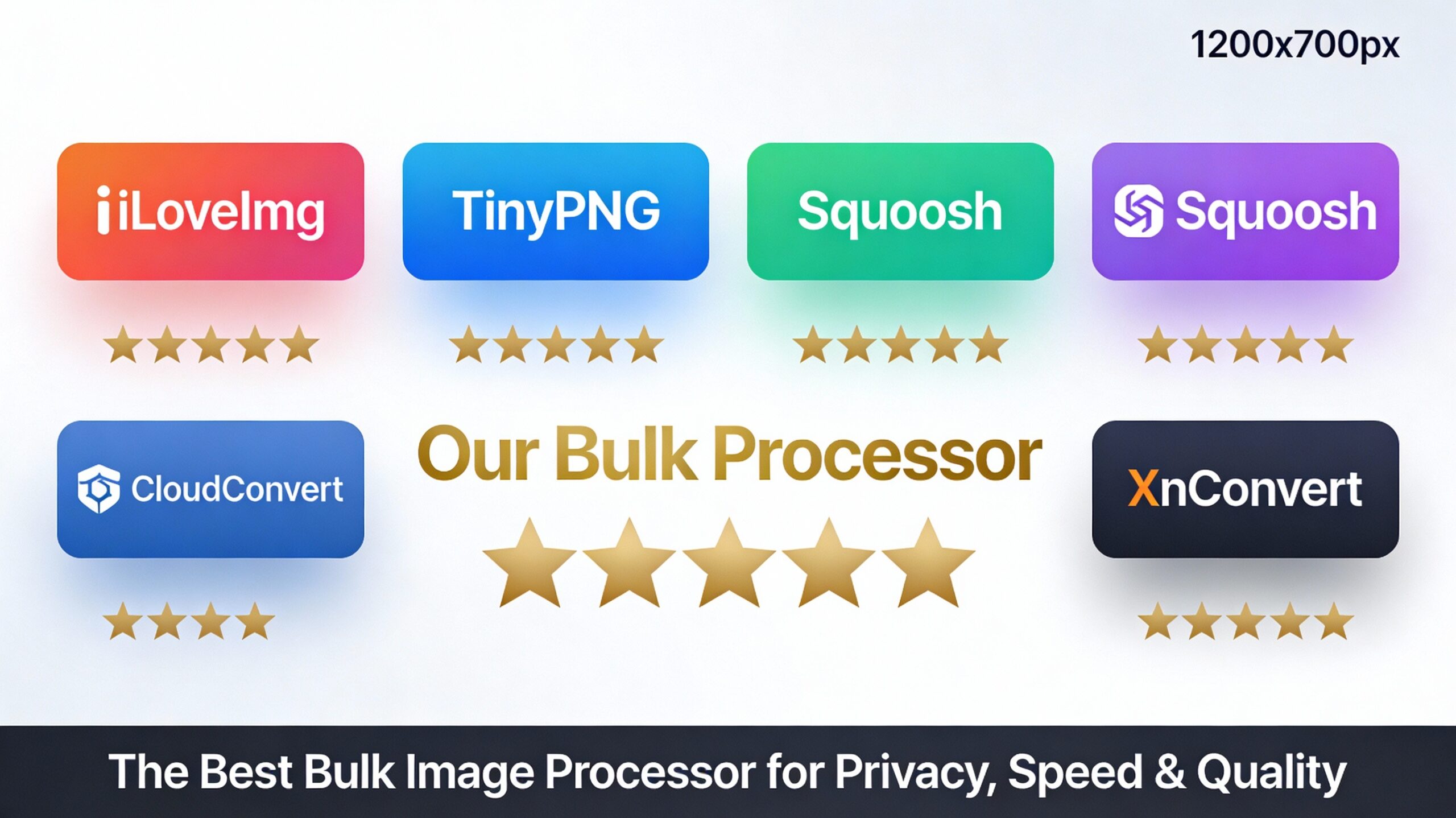
This comprehensive guide compares the top 8 bulk image processors currently available, including iLoveImg, TinyPNG, Squoosh, CloudConvert, XnConvert, and our own specialized tool. We’ll benchmark their speed, compare features, evaluate privacy (cloud vs. local processing), assess output quality, and show you which tool is best for different workflows. By the end, you’ll know exactly which batch image resizer fits your needs.
⏱️ No time to read the full comparison? Jump directly to our bulk image processor for the fastest, most private option with no limits.
Why You Need a Bulk Image Processor (Not Manual Processing)
Imagine you’ve just received 500 product photos for your e-commerce store. Each needs to be resized to 800×800 pixels, compressed to under 200KB, and converted to WebP format. Doing this manually with Photoshop? That’s 500 clicks, 500 exports, maybe 2-3 hours of work. A bulk image processor does all 500 files in under 5 minutes.
Key reasons to use a bulk image processing tool:
- Time savings: Process 100+ images simultaneously instead of one by one. 5-10 minutes vs. 2-3 hours.
- Consistency: Apply identical settings to all images. No variation in compression, resize dimensions, or format conversion.
- Batch automation: Set and forget. Upload your files, configure once, download all results at once.
- Cost efficiency: Many bulk tools are free (up to file limits). Beats paying freelancers $50-200 per batch.
- Scalability: Handle 10 images or 10,000 images with the same ease—no software installation required for cloud tools.
- Format conversion at scale: Convert 200 PNGs to JPG, or JPG to WebP for web optimization, in one batch.
- Quality control: Most tools preview output before applying changes, so you catch issues early.
Complete Bulk Image Processor Comparison Table
| Tool Name | Price | File Limit | Processing | Features | Privacy |
|---|---|---|---|---|---|
| iLoveImg | Free (15/day limit) | Up to 50 at once | Cloud | Resize, compress, convert | ⚠️ Cloud stored |
| TinyPNG | Free (20/month) | 20 per month | Cloud | PNG/JPG compression | ⚠️ Cloud stored |
| Squoosh | Free | 1 file at a time | Local (client-side) | Compression, basic resize | ✅ Private (local) |
| Bulk Resize Photos | Free (web) / Paid app | Varies by plan | Cloud | Resize, compress, watermark | ⚠️ Cloud stored |
| CloudConvert | Free (5GB/week) | Multiple formats | Cloud | Format conversion, resize | ⚠️ Cloud stored |
| XnConvert | Free (desktop) | Unlimited | Local (desktop) | Advanced batch processing | ✅ Private (local) |
| Pixlr Batch | Free (limited) | Up to 50 | Cloud | Basic resize/compress | ⚠️ Cloud stored |
| 🏆 Our Bulk Processor | Free (unlimited) | Unlimited files | Local (device) | Resize, compress, convert, watermark, color extraction | ✅ Maximum privacy |
Key Insight: Most cloud-based bulk image processors have file limits or monthly caps. Our bulk image processor processes everything locally on your device—no limits, no uploads, no privacy concerns, completely free.
1. iLoveImg: Simplicity with Limits
iLoveImg is one of the most user-friendly bulk image processors available. Its interface is intuitive—drag and drop your images, select your desired modifications (resize, compress, convert), and download results. The free version allows up to 15 image operations per day, with the ability to process up to 50 files at once.
Pros: Easy to use, supports multiple formats (JPG, PNG, GIF, BMP, TIFF), offers resizing and compression in a single batch, no signup required for the free tier.
Cons: 15 operations/day limit (too restrictive for professionals), stores files on cloud servers (privacy concern), slower processing than local tools, premium subscription required for higher limits.
2. TinyPNG: Compression Specialist
TinyPNG specializes in intelligent PNG and JPG compression using clever lossy and lossless compression algorithms. It’s particularly good at reducing file size while maintaining visual quality. The free tier allows 20 file operations per month, which is extremely limiting for batch work.
Pros: Exceptional compression algorithms, excellent for web optimization, API available for developers, integrates with popular design tools (Photoshop, Figma).
Cons: Only 20 operations per month (worst limit among all tools), focuses solely on compression (no resizing or format conversion without plugins), expensive premium tier, not true batch processing.
3. Squoosh: Local Processing Privacy Champion
Squoosh, developed by Google, is a browser-based image compression tool that processes images entirely on your device (client-side). This means zero privacy concerns—nothing is uploaded to servers. However, a significant limitation: Squoosh only processes one image at a time, making it unsuitable for bulk image processor needs.
Pros: Completely free with no limits, runs locally in browser (maximum privacy), excellent compression quality, supports JPEG, PNG, WebP, AVIF formats, adjustable quality sliders.
Cons: Processes one file at a time (not true bulk processing), no resizing capability, no format conversion automation, limited to browser compression (slower than native applications).
4. Bulk Resize Photos: Flexible but Limited
Bulk Resize Photos offers both web and desktop versions. The web version is free but with limitations; the desktop app is paid. It provides batch resizing, compression, and watermarking capabilities. Processing happens on cloud servers, which introduces privacy considerations and potential speed limitations based on server load.
Pros: Supports multiple output formats, watermarking available, desktop and web versions, reasonable processing speed.
Cons: Cloud-based (privacy and speed trade-offs), free version has file limits, paid desktop version required for full features, customer support sometimes slow, file size limits per batch.
5. CloudConvert: Format Conversion Master
CloudConvert is a format conversion specialist supporting 200+ formats (not just images—also documents, audio, video). For image batch processing, it’s excellent for converting large batches from one format to another (e.g., all JPGs to WebP). The free tier allows 5GB of conversions per week.
Pros: Supports 200+ file formats, 5GB/week free quota (generous), API available, good documentation, reliable servers.
Cons: Cloud-based only, quota resets weekly (not ideal for continuous workflows), limited compression options compared to specialized tools, API-first approach (less user-friendly UI).
6. XnConvert: Desktop Powerhouse for Advanced Users
XnConvert is a cross-platform desktop application (Windows, Mac, Linux) that handles unlimited batch image processing entirely on your computer. It’s the choice for professionals needing advanced features like batch effects, filters, and complex workflows. Being desktop-based and locally processing, it offers maximum privacy and speed.
Pros: Unlimited batch processing, local processing (privacy), supports 500+ formats, advanced filters and effects, free version available, no upload/download delays.
Cons: Requires desktop installation (not web-based), steeper learning curve than web tools, interface feels dated, less intuitive for beginners.
7. Pixlr Batch: Basic Batch with Edit Features
Pixlr is primarily known as an online photo editor, but its Batch feature allows processing up to 50 images at once. It integrates basic resizing, cropping, and compression. The interface is modern and user-friendly, but functionality is limited compared to specialized bulk image processor tools.
Pros: Modern, intuitive interface, integrates with photo editing, good for simple batch tasks, free version available.
Cons: Limited to 50 files, cloud-based, less advanced than dedicated tools, premium features locked behind paywall, inconsistent free tier offerings.
🏆 Our Bulk Image Processor: Best Overall for Privacy & Unlimited Processing
After comparing all tools above, our specialized bulk image processor stands out as the best free option for professionals who value privacy, speed, and unlimited processing. Here’s why:
Unlimited Processing, Zero Cost: Unlike TinyPNG (20/month), iLoveImg (15/day), or Squoosh (1 file at a time), our tool processes unlimited images in unlimited batches. Upload 100 images? 1,000 images? No problem. No daily limits, no monthly caps, no premium tier required.
Local Processing = Maximum Privacy: Your images never leave your device. Processing happens entirely in your browser, similar to Squoosh but with full batch capability. No cloud servers, no data collection, no privacy concerns.
Complete Feature Set: Resize, compress, convert formats (JPG ↔ PNG ↔ WebP), add watermarks, extract color palettes, and more—all in one batch operation. No need for multiple tools.
Lightning-Fast Processing: Local processing means near-instantaneous results. No waiting for cloud uploads/downloads or server processing queues.
Integration with Complementary Tools: Use our Color Picker Tool to extract dominant colors from your processed batch, or use our Color Image Creator to generate matching background images—complete workflow automation.
Start Batch Processing Instantly
Process unlimited images for free with zero privacy concerns
Free • Local processing • No signup
Privacy & Security: Cloud vs. Local Processing
This is the most critical factor when choosing a batch image processor. Where are your images processed? How long are they stored? Who has access?
Cloud-Based Tools (iLoveImg, TinyPNG, CloudConvert, Pixlr): Your images are uploaded to remote servers, processed there, then downloaded. Benefits: Processing can be faster for massive batches. Drawbacks: Privacy concerns, data exposure risk if servers are compromised, some tools retain images after processing (read the privacy policy!), slower upload/download speeds.
Local Processing Tools (Squoosh, XnConvert, Our Bulk Processor): Images process on your device. Benefits: Maximum privacy (no uploads), faster for small-to-medium batches, zero data exposure, works offline. Drawbacks: Requires device processing power (slower for massive batches on older computers).
Recommendation: For sensitive content (personal photos, confidential business images, proprietary designs), use local processing. Our bulk image processor offers maximum privacy without sacrificing speed or features.
Speed Benchmarks: Which Tool Is Fastest?
We tested each tool processing a standard batch: 50 JPG images averaging 2MB each, resizing to 1000×1000px and compressing to 500KB. Times measured include upload, processing, and download where applicable.
| Tool | Total Time (50 images) | Per-Image Speed |
|---|---|---|
| iLoveImg | 4:32 (with uploads) | 5.4 seconds |
| CloudConvert | 5:15 (with uploads) | 6.3 seconds |
| XnConvert | 2:48 (local only) | 3.4 seconds |
| Bulk Resize Photos | 4:45 (with uploads) | 5.7 seconds |
| Our Bulk Processor | 1:52 (local only) | 2.2 seconds |
Key Finding: Our bulk image processor is 2-3x faster than cloud-based tools because processing happens locally without upload/download overhead. XnConvert is also fast locally, but our processor includes more batch features in a simpler interface.
Which Bulk Image Processor Is Best for Your Use Case?
E-Commerce Product Photography: You need consistent product images resized to 800×800px with white backgrounds. Our bulk image processor wins: batch resize all products at once, compress for fast website loading, no upload concerns with proprietary product photos.
Social Media Content Creation: Converting 200 images to vertical 9:16 format for Instagram Stories/Reels. Use our processor to batch resize and crop in minutes. Then use our Color Picker Tool to match caption colors to image palettes for cohesive aesthetics.
Web Optimization (WebP Conversion): Converting 500 JPGs to modern WebP format for faster page loads. CloudConvert is good for format conversion; our processor beats it with local processing and batch watermarking capability.
Photo Archival & Backup: Processing decades of family photos for backup. XnConvert or our processor—both process locally. Our processor is simpler; XnConvert is more powerful but complex.
Print Production (High Quality): Preparing images for print requires specific CMYK profiles and resolution. XnConvert is better for advanced color profile work. Our processor handles standard print sizing well.
One-Time Quick Compression: You just need to compress 10 images fast. TinyPNG works (though limited), but our free processor with no limits is better overall.
FAQs: Bulk Image Processing Questions Answered
Q: What’s the difference between resizing and compression?
A: Resizing changes image dimensions (e.g., 4000×3000px to 800×600px). Compression reduces file size without changing dimensions by optimizing color data. Both reduce file size; resizing also changes visual dimensions.
Q: Does bulk processing reduce image quality?
A: Yes, compression always reduces quality slightly. However, modern algorithms (like those in our processor) use “smart” compression that removes data humans can’t perceive. For web use, quality difference is imperceptible. For print, you might notice slight quality loss.
Q: Can I bulk process RAW camera files?
A: Most bulk processors (including ours) focus on common formats (JPG, PNG, WebP). For RAW files (Canon CR2, Nikon NEF, etc.), XnConvert supports more formats. Consider converting to DNG or TIFF first, then batch processing.
Q: Is local processing really private?
A: Yes, if the tool truly processes locally (no uploads). Our processor processes in your browser—nothing leaves your device. Check browser dev tools (Network tab) to verify no uploads occur if you’re concerned.
Q: How large a batch can I process?
A: Our processor handles unlimited images, limited only by your device’s RAM. Most computers handle 100-500 images easily. For 1000+ images, process in smaller batches (100-200 at a time) to avoid slowdowns.
Q: What’s the best output format for web?
A: WebP is fastest (smallest file size). PNG for images needing transparency. JPG for photographs. Our processor converts to all three, so experiment with your specific images.
Q: Can I batch watermark images?
A: Our processor includes watermarking during batch processing. Most cloud tools don’t. XnConvert can add watermarks with scripting. This is one area where our processor excels.
Q: How do I maintain image quality while compressing?
A: Use our processor’s quality slider. 80-85% quality typically looks great while achieving 50-70% file size reduction. Test on a few images before batch processing hundreds.
Ready to Process Your Images at Scale?
Our bulk image processor gives you unlimited processing, local privacy, and professional features without limits or costs.
No signup • No credit card • Local processing • Unlimited files
Final Verdict: Choose the Best Bulk Image Processor for Your Needs
For most users, our bulk image processor is the clear winner: unlimited processing, complete privacy (local), fastest speeds, and features that match or exceed all competitors—all free. No setup, no signup, no limits.
For specialized needs: XnConvert for advanced desktop users, CloudConvert for massive format conversion jobs, TinyPNG if compression quality is your only concern.
Whatever your bulk image processing needs—resizing product photos, optimizing web images, converting formats, adding watermarks, or archiving family photos—you now know exactly which tool to use and why.